Uma Fighters Mobile Guide
Touch controls, landscape setup, air dash inputs, and mobile-friendly training.
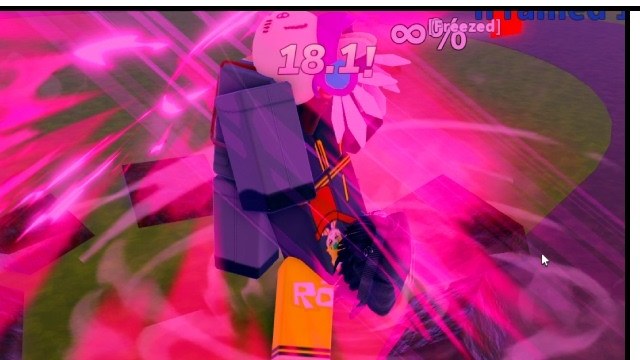
Uma Fighters runs on Roblox mobile with the same combat systems as PC — M1 chains, skills 1–4, F block, Q dash, R Special, and G Awaken. What changes is input: touch buttons, smaller screen space, and harder execution on advanced movement like air dash. This guide helps mobile players compete by optimizing layout, mapping buttons to PC logic, tuning sensitivity, and practicing one reliable combo before PvP.
New mobile players should start with the Getting Started Guide for combat fundamentals, then read the Controls Guide for the full ALPHA input list side by side with touch labels.
Why Landscape Mode Matters
Always play Uma Fighters in landscape (horizontal) orientation. Portrait mode crowds the battlefield and pushes touch buttons into your thumb zone awkwardly, making M1 confirms and dash reads harder.
Landscape benefits:
- Wider view of opponent movement and platform edges
- More room between movement joystick and action buttons
- Easier tracking of summons, knockback, and corner position
- Matches how PC players see spacing — critical for footsies
Lock rotation in your device settings if you accidentally flip to portrait mid-match. A single orientation mistake during Awaken chase can cost the round.
Touch Button Layout vs PC Keys
Roblox mobile overlays map directly to PC inputs. Learn the mapping once and think in PC terms when watching guides or Discord clips.
| PC Input | Mobile Touch | Combat Role |
|---|---|---|
| Left Click (M1) | M1 / Attack button | 4-hit basic chain |
| 1 / 2 / 3 / 4 | Skill buttons 1–4 | Character abilities |
| F | Block button | Hold to defend |
| Q | Dash button | Ground dash, evasive, air dash combo |
| R | Special button | Character special; Director swaps moveset |
| G | Awaken / Ultimate button | Transformation when meter full |
| W/A/S/D | Virtual joystick | Movement |
| Space | Jump button | Jump and super jump |
| W + W | Double-tap forward on joystick | Run and vault |
Mobile does not simplify combat — it relocates buttons. Aurora players can learn the same M1 → Skill routes as PC; Director players still manage money and R swaps. See Characters for kit differences.
Block and Dash on Touch
F block and Q dash are the hardest defensive tools to master on mobile because they sit near offensive buttons.
Block tips:
- Use hold-to-block if available — tap-block often releases too early under pressure.
- Do not hold block while walking forward — you lose neutral for free.
- After blocking a full M1 string, either dash back or punish — idle block invites grab-style pressure.
Dash tips:
- Ground Q forward for approach; back Q for reset. Do not spam dash — good PC players bait panic dashes.
- Evasive dash while ragdolled uses the same button — learn when the game grants evasive frames.
- Dropkick variants after super jump require jump + dash timing — practice in training before PvP.
For punish routes after block or whiff, study the Combos Guide and drill one route until automatic.
Air Dash Difficulty on Mobile
Air dash (Q + Space + direction) is the highest-skill mobile input. PC players bind keys separately; mobile requires thumb choreography on jump, dash, and joystick simultaneously.
Why air dash is harder on touch:
- Three inputs in quick sequence with limited thumb reach
- Jump button and dash button may overlap visually under stress
- Direction must be held on joystick while airborne — forward (W) or back (S)
Mobile air dash practice steps:
- In training, jump with Space button only — no dash — until jump height feels consistent.
- Jump, then tap dash while holding forward on joystick.
- Add back air dash separately — do not mix directions until forward is reliable.
- Only then attempt M1 or Skill confirms after air dash landing.
If air dash fails repeatedly, play grounded routes first. Many Aurora wins come from mid-range M1 confirms and corner push without aerial tech. Advanced mobile players can revisit air dash after one combo is mastered.
Sensitivity and Button Placement
Roblox allows some control customization. Optimize for consistency, not speed.
Sensitivity guidelines:
- Camera sensitivity — Lower slightly if you overshoot opponents during chase; raise only if tracking feels sluggish.
- Joystick dead zone — Too small causes accidental direction inputs; too large delays movement.
- Button size — Enlarge M1 and dash if mis-taps are common; shrink emote or non-combat buttons if they clutter the screen.
Place dash and block where your right thumb can reach without shifting grip mid-combo. Every reposition during a confirm drops the chain.
There is no universal perfect layout — copy pro PC advice for logic, not button positions. Record yourself in training and notice which mis-tap happens most, then fix that one button first.
One Combo Practice Before PvP
Mobile players should not enter ranked with ten half-learned routes. Master one bread-and-butter combo first.
Recommended starter combo (Aurora or any character):
- Confirm M1 hit 1 at mid range — do not mash the full chain until hit 1 connects.
- Complete M1 hits 2–4 with timing, not speed.
- Cancel last hit into Skill 1 or Skill 4.
- If opponent jumps, Q chase — skip air dash until grounded dash is reliable.
Practice this combo twenty times in training without PvP. Then play casual matches with one goal: land the combo three times. Only after that add block punish or corner push from the Combos Guide.
Director players: confirm before spending money on follow-ups. Mobile mis-taps waste resources faster than on keyboard.
Mobile vs PC in PvP
Mobile players can reach high skill, but recognize fair limitations:
- Reaction punishes — Slightly harder on touch; prioritize reads over raw reactions.
- Complex characters — The Director’s R swap and summon management demand precise taps; Aurora remains the better mobile starter.
- Session length — Shorter focused sessions prevent thumb fatigue and mis-input streaks.
Read PvP Tips for neutral mindset that does not rely on frame-perfect reactions. Check Tier List for character difficulty context.
Video Walkthrough
Watch the embedded mobile gameplay showcase below for touch layout, combat flow, and real PvP on Roblox mobile.
Related Guides
- Controls — full PC and mobile input reference
- Getting Started — beginner combat fundamentals
- Combos Guide — M1 chains, cancels, and corner pressure
- PvP Tips — spacing, reads, and anti-tilt for ranked
- Aurora Guide — best mobile starter character
Frequently Asked Questions
Quick answers to the most common questions.
Should I play Uma Fighters on mobile in portrait or landscape?
Always landscape. Portrait crowds the screen and pushes touch buttons into awkward positions, making spacing and M1 confirms much harder.
Do mobile controls match PC in Uma Fighters?
Yes. Touch buttons map to M1, skills 1–4, F block, Q dash, R Special, and G Awaken. The combat systems are identical — only the input method differs.
Why is air dash hard on mobile?
Air dash requires jump, dash, and direction inputs in quick sequence with limited thumb reach. Practice grounded combos first, then add forward air dash in training before using it in PvP.
What combo should mobile players learn first?
One reliable M1 full chain into Skill 1 or Skill 4 at the last hit. Practice twenty clean reps in training before ranked. Timing matters more than speed on touch.
Is Aurora better than The Director on mobile?
For most mobile players, yes. Aurora's simpler kit avoids money management and R moveset swaps that punish mis-taps. Master Aurora before trying The Director on touch controls.